easyFS, cloud accounting for small businesses
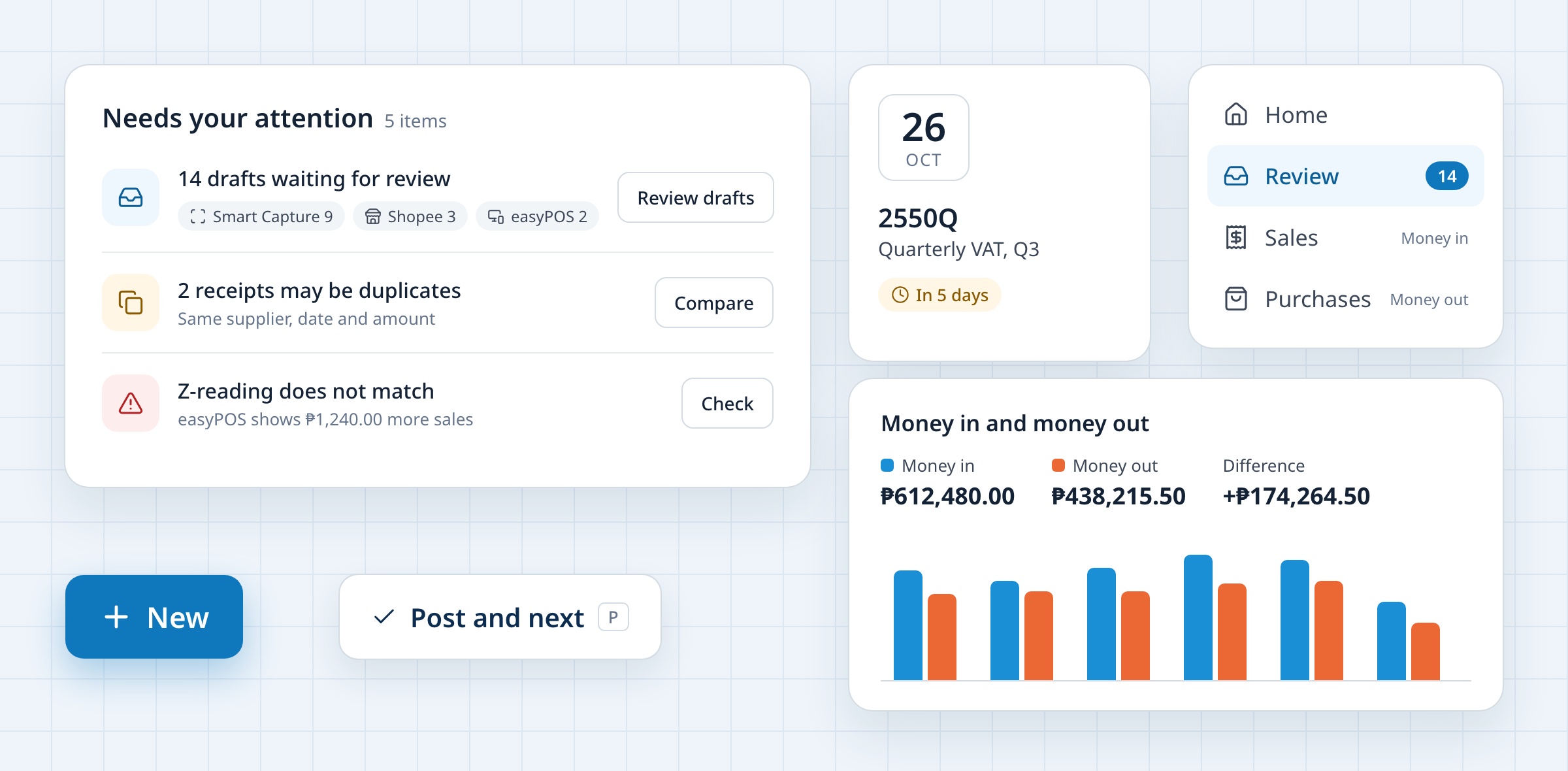
easyFS is an accounting app for small businesses in the Philippines, from coffee shops to repair shops. I worked on it at Humedit. This page walks through the web app: who it is for, how they use it, and the main screens.
- Timeline
- 2024
- Scope
- Product design, UI/UX design
Overview
Two kinds of users.
easyFS covers sales, purchases, inventory, banking, financial statements and BIR forms. It is used by two kinds of people. Owners want a quick sense of how the business is doing. Bookkeepers and accountants do the daily entries, the bank reconciliation and the BIR filing.
I tried to keep both in mind on every screen: everyday words up front for owners, and the accounting terms and form numbers still there for the people who need them. The businesses, people and amounts shown here are made up.
User journeys
Three people, three tasks.
A typical task for each kind of user, step by step. The line follows how each step feels, where it dips and where it recovers.
-
Ana, owner
Runs two coffee shops. Wants to know the business is fine and bill clients without calling the bookkeeper.
- 01
Opens easyFS
Logs in over coffee before the shop opens.
Unsure - 02
Sees what needs her
Three overdue invoices, bills due Friday and a VAT return in five days.
In control - 03
Starts an invoice
Taps New, then picks a regular client from Recent.
Quick - 04
Checks the amounts
Wonders why the amount due is lower than the total, until the summary shows the withholding.
Puzzled then clear - 05
Sends it
Sends the invoice, then a reminder to a client who is 72 days late.
Relieved
- 01
-
Mark, bookkeeper
Gets a pile of receipts from both branches every week, plus online orders and POS sales. Wants to clear them without posting anything twice.
- 01
Snaps the receipt
Takes a photo with Capture before the paper fades.
Easy - 02
Checks what was read
Compares the highlighted values on the receipt with the fields.
Doubtful then sure - 03
Catches a duplicate
A receipt is flagged as one he already posted, so he discards it.
Protected - 04
Posts the rest
Posts and moves to the next one. Picks the wrong branch once and undoes it.
Slip then fixed - 05
Explains a POS gap
The POS shows ₱1,240 more sales than the books, and easyFS points to the missing receipt.
Worried then solved
- 01
-
Rosa, outside accountant
Looks after nine small businesses. Wants to file on time with numbers she can stand behind.
- 01
Sees what is due
Switches to the client and sees the quarterly VAT return due in five days.
Pressured - 02
Reconciles the bank
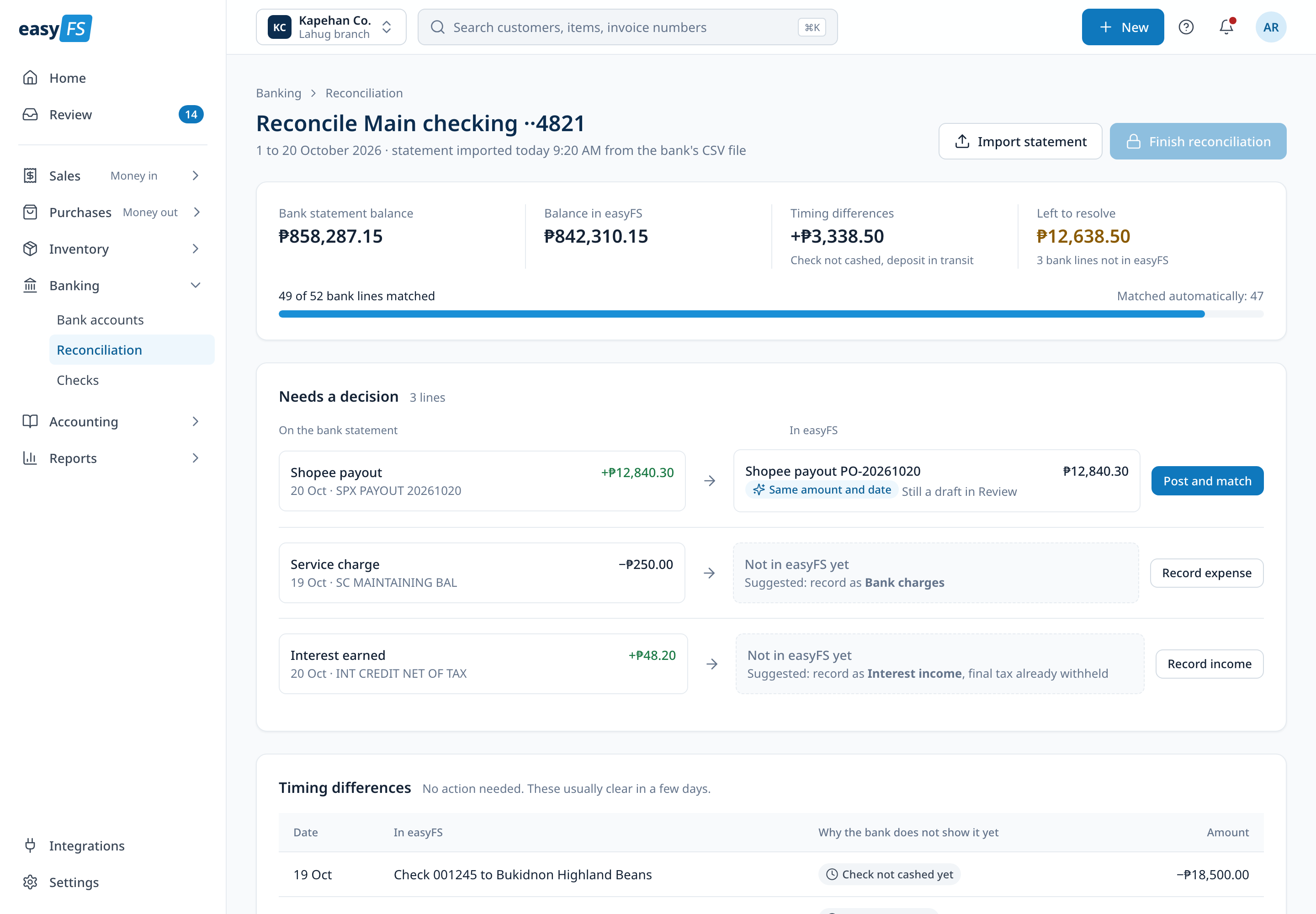
Imports the statement. 49 of 52 lines match on their own.
Fast - 03
Checks readiness
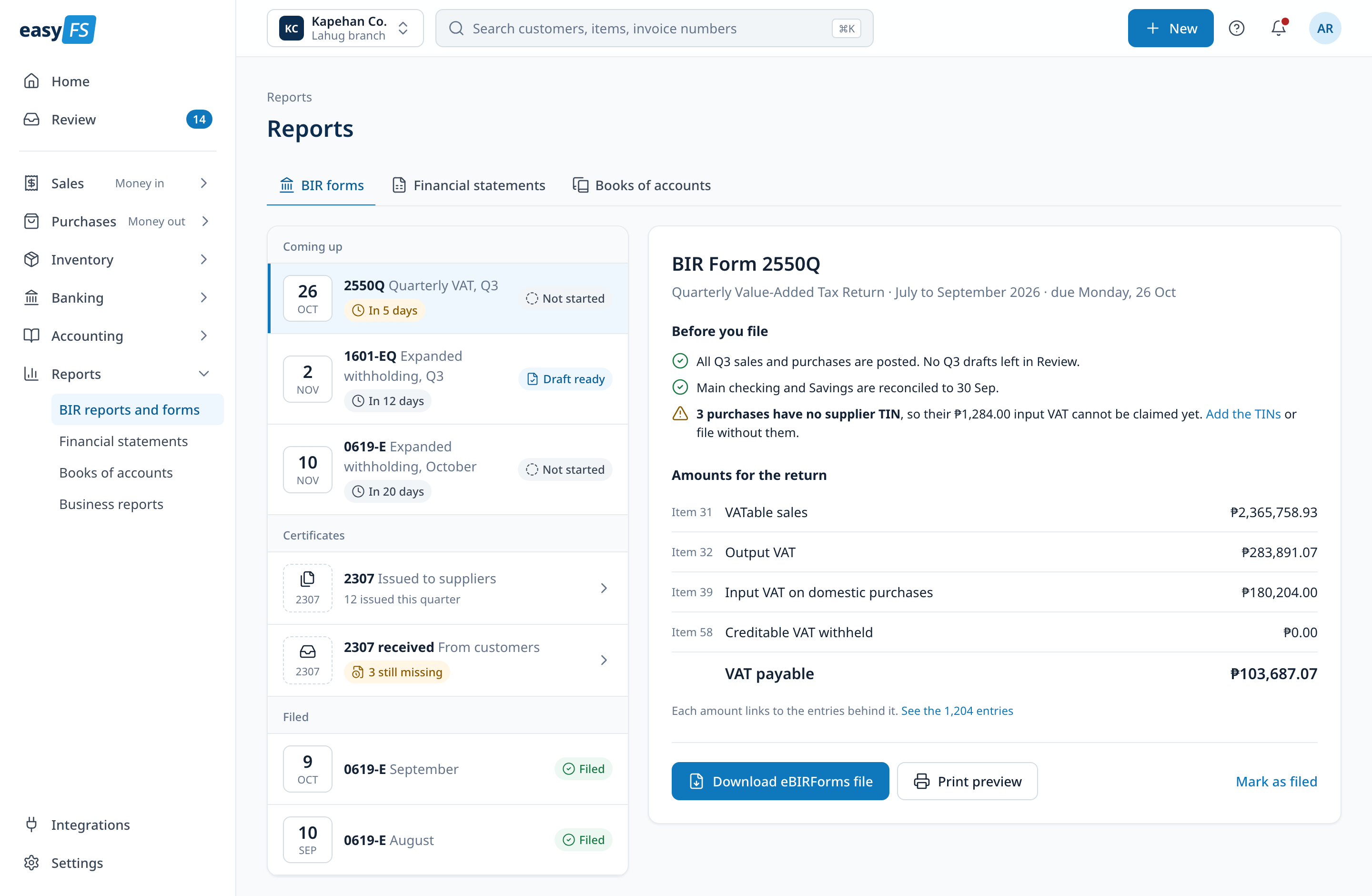
The checklist shows three purchases with no supplier TIN.
Alert - 04
Prepares the return
Adds the TINs and downloads the file for eBIRForms.
Confident - 05
Records the filing
Marks the return as filed so the owner can see it is done.
Done early
- 01
Home
A starting point for the day.
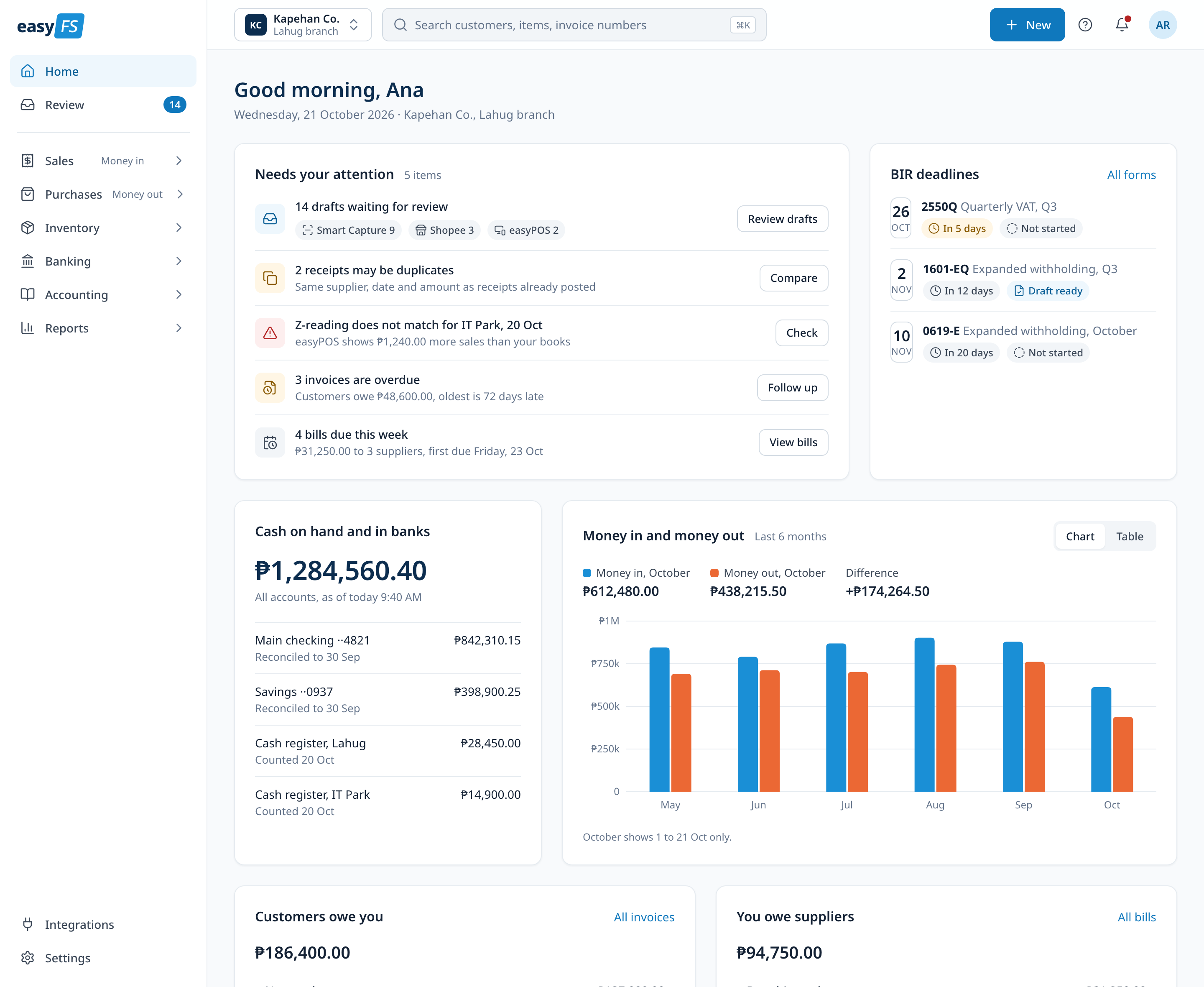
Home shows what needs attention, the next BIR deadlines, cash on hand and money in and out for the month. The side menu uses everyday words like Money in and Money out, with the accounting terms one level down.
Review
Drafts wait for a person.
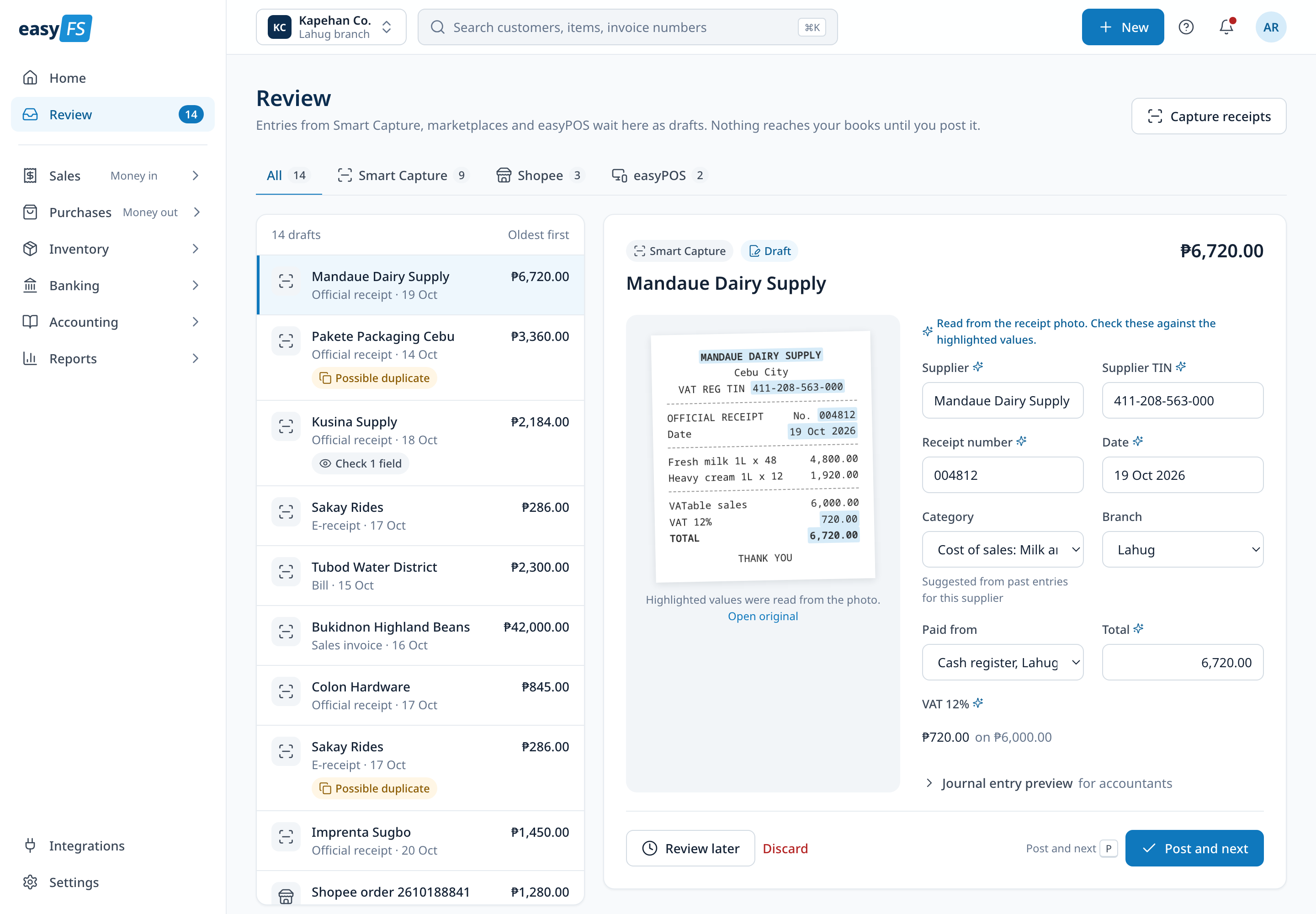
Receipts read by Smart Capture, online store orders and POS sales come in as drafts. They wait in Review, with the receipt beside the fields read from it, until someone checks and posts them.
Invoicing
One page per invoice.
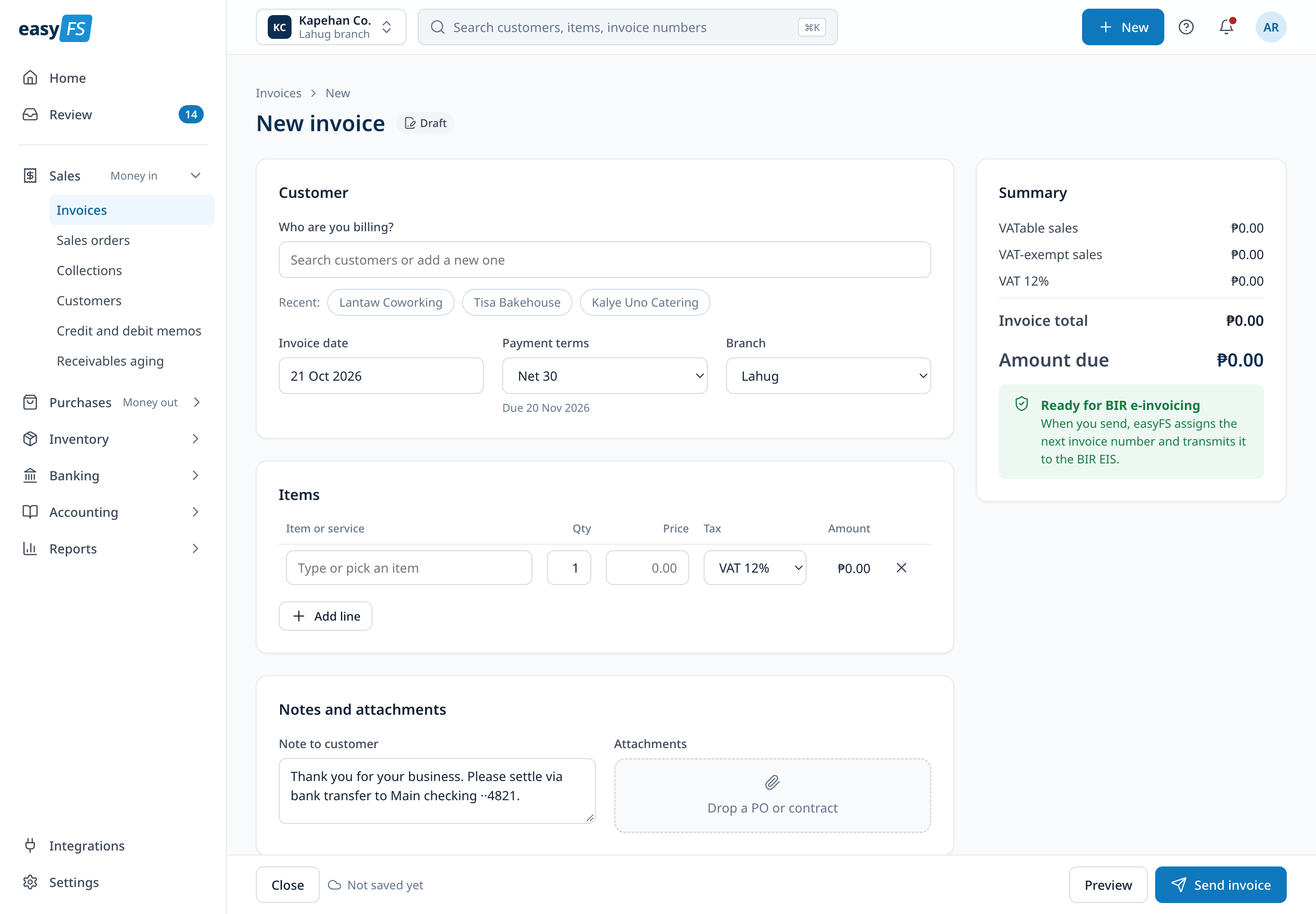
A new invoice keeps the customer, the items and a running summary on one page, including VAT and the amount due.
Month end
Reconciling and filing.
Bank reconciliation lists the lines that still need a decision, each with one action. BIR forms open with a short checklist before filing, and each amount is labelled with its form item.
Phone
Quick tasks on the go.
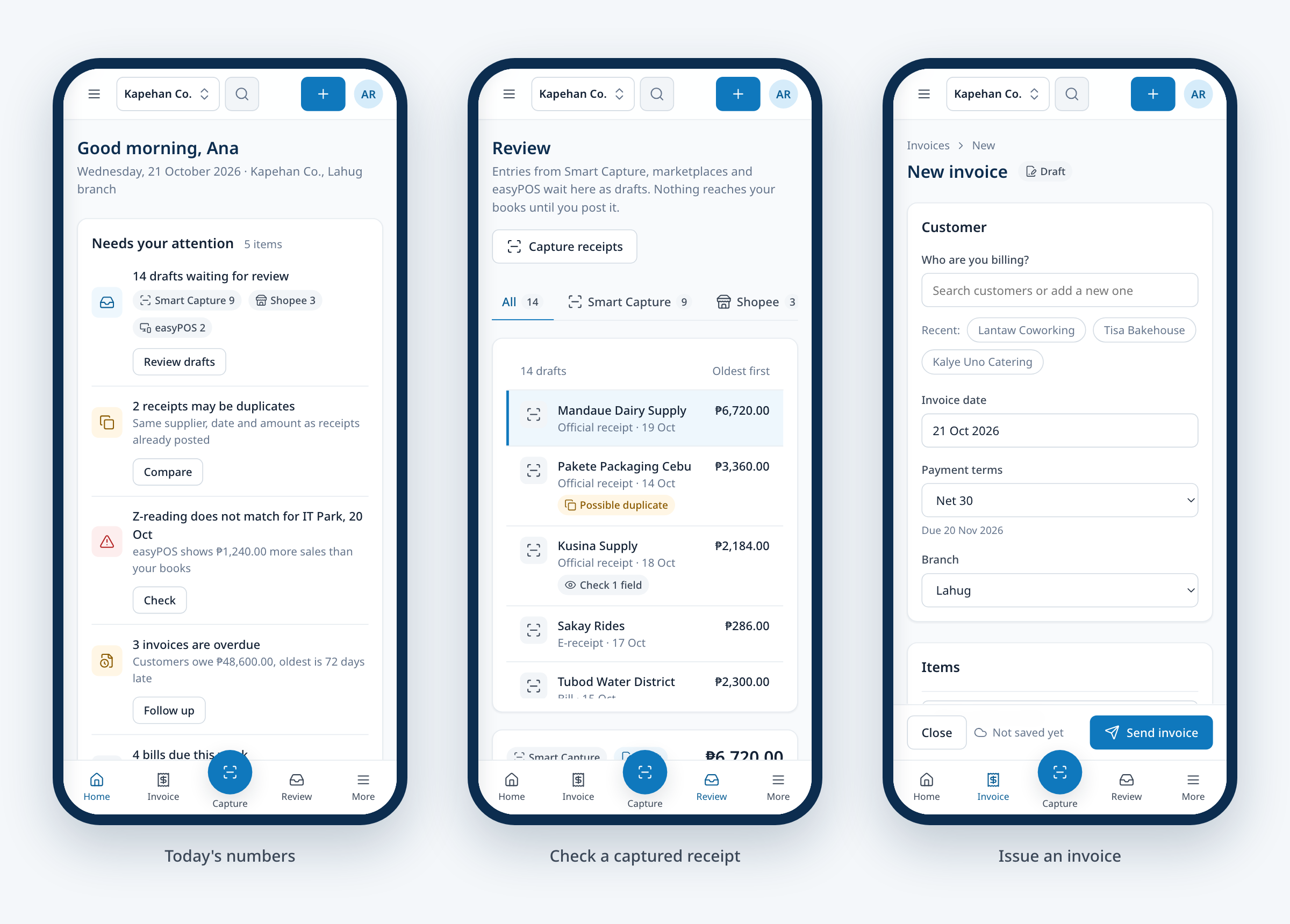
On a phone, the app focuses on quick tasks: checking the day, capturing a receipt and sending an invoice.
Let’s talk
I’d love to tell you more on a call.
There’s more to this project than fits on one page. If you’re interested, I’m happy to walk you through it.